Qamaq.io: Enterprise AI
Redesigning an Enterprise AI solution for every skill level
Role
Human-AI Interaction Designer
Industry
AI SaaS
Duration
3 months
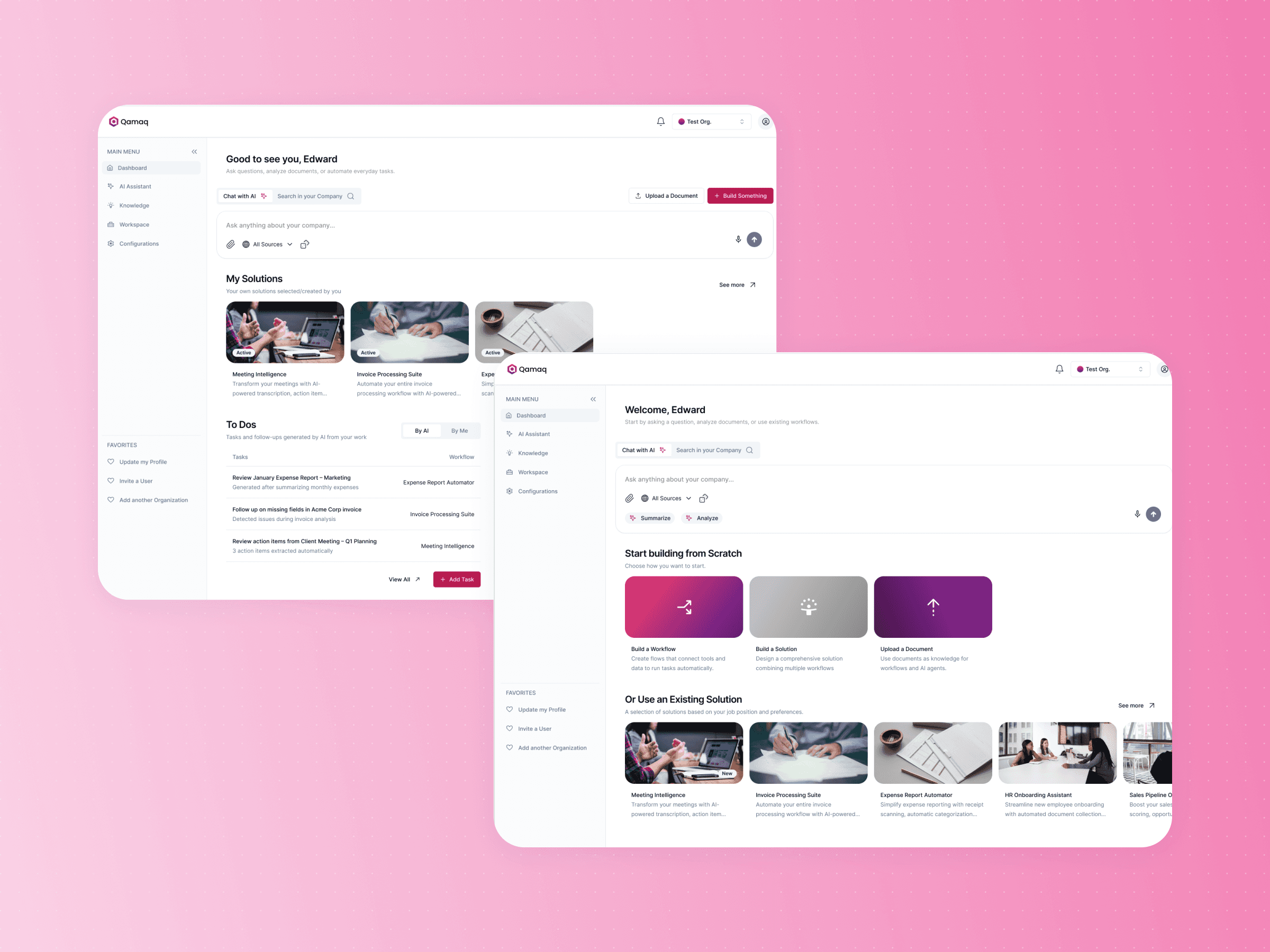
Qamaq is an enterprise AI platform that lets teams consult internal documents, automate workflows, and build custom solutions all-in-one.
I joined Qamaq as a Human-AI Interaction Designer to redesign a platform that had been built by the CEO and the dev team but was only really working for technical users. The challenge was clear: make it adaptive for every type of user, regardless of their skill level.
Working directly with the CEO, I led the end-to-end redesign of the platform's core flows. This included architecting the new level-based dashboard and completely rethinking the "build a solution" experience, making sure the interface felt right no matter who was using it.
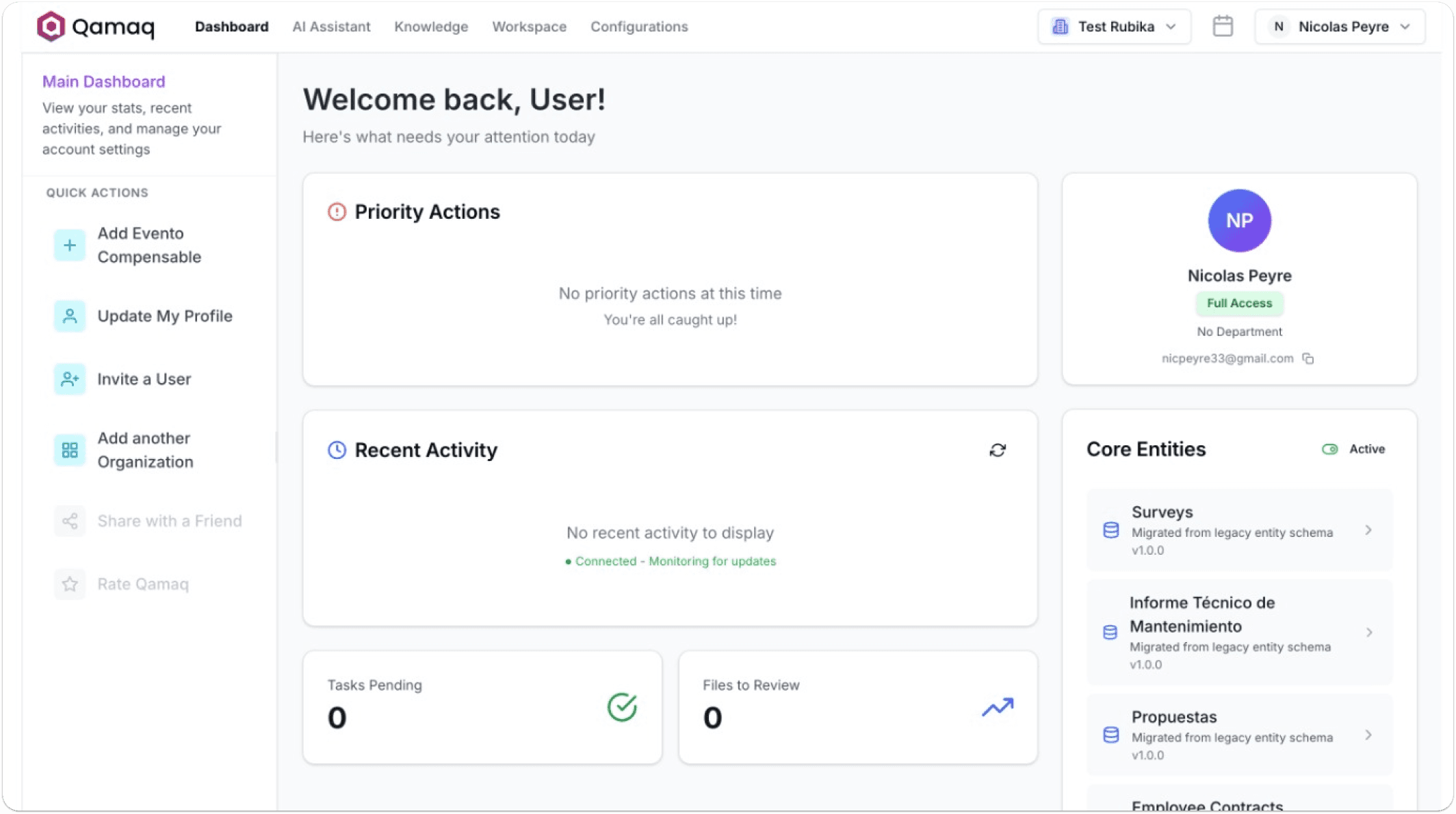
The platform was solid, but it was built assuming everyone already knew how to use enterprise AI.
Two things kept coming up:
 Information overload on the dashboard | The creation flow was too complex for low-mid level users |
|---|---|
Nothing made it clear for new users where to start or what Qamaq could actually do. | Beginners and intermediate users would hit a wall the moment they tried to build something real. |
DASHBOARD BEFORE
DASHBOARD AFTER
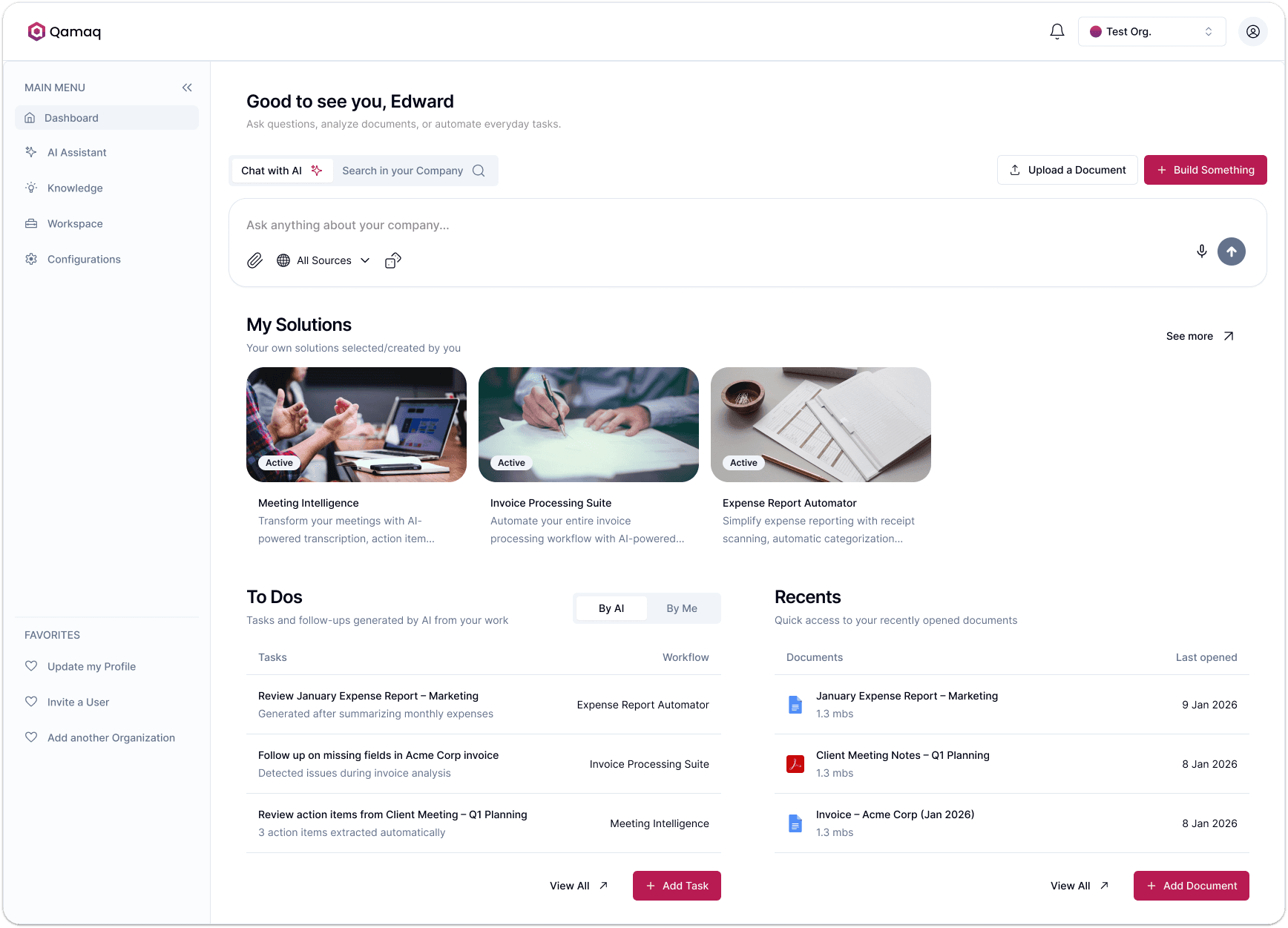
The goal was to keep Qamaq's full enterprise power while making it work for non-technical users.
Two things had to happen:
 Make the dashboard adapt to who's using it | Make the creation flow work for everyone. |
|---|---|
Each role needed to see exactly what was relevant to them. No overload, no guessing. | Beginners needed guidance to get through it. Advanced users needed a fast track. |
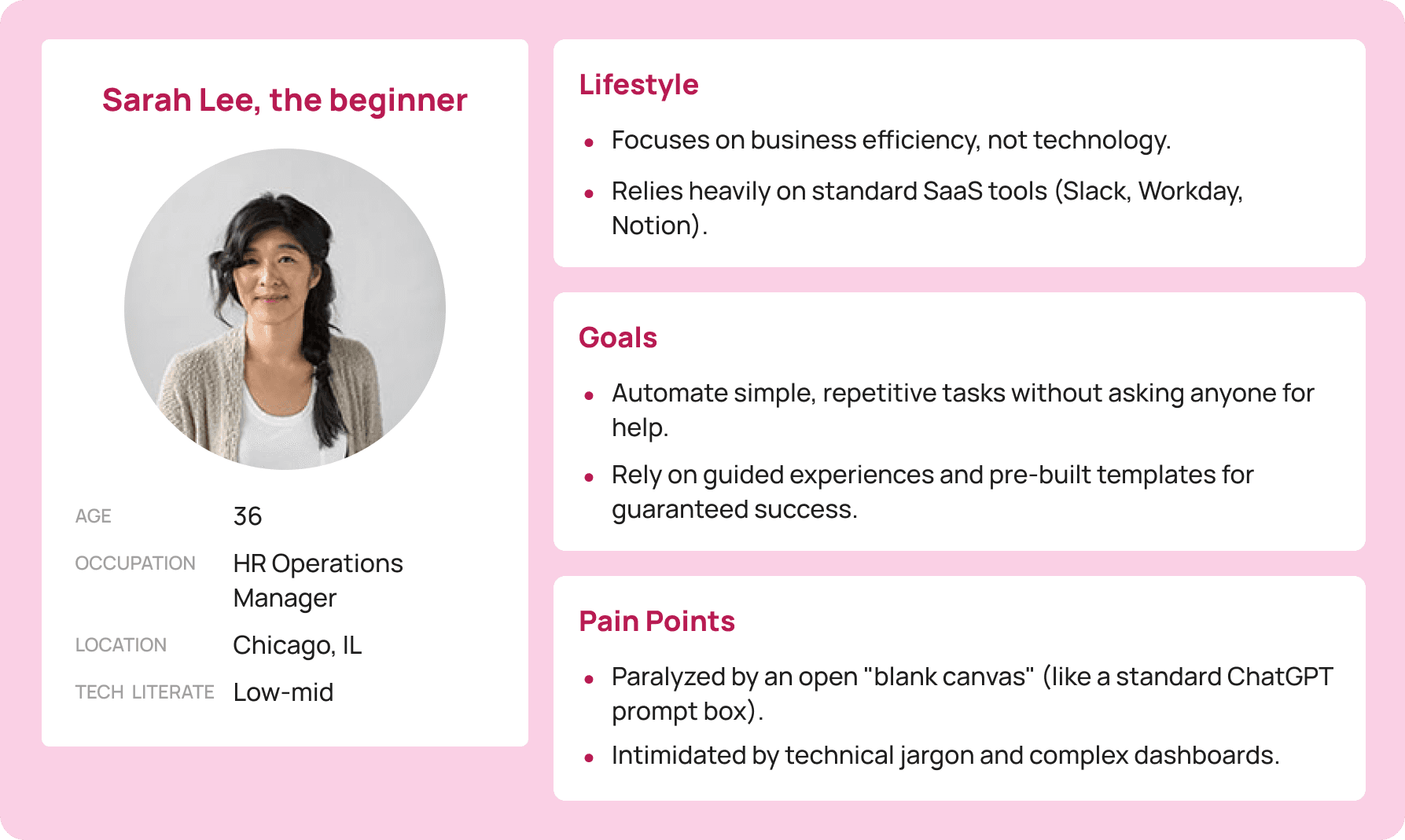
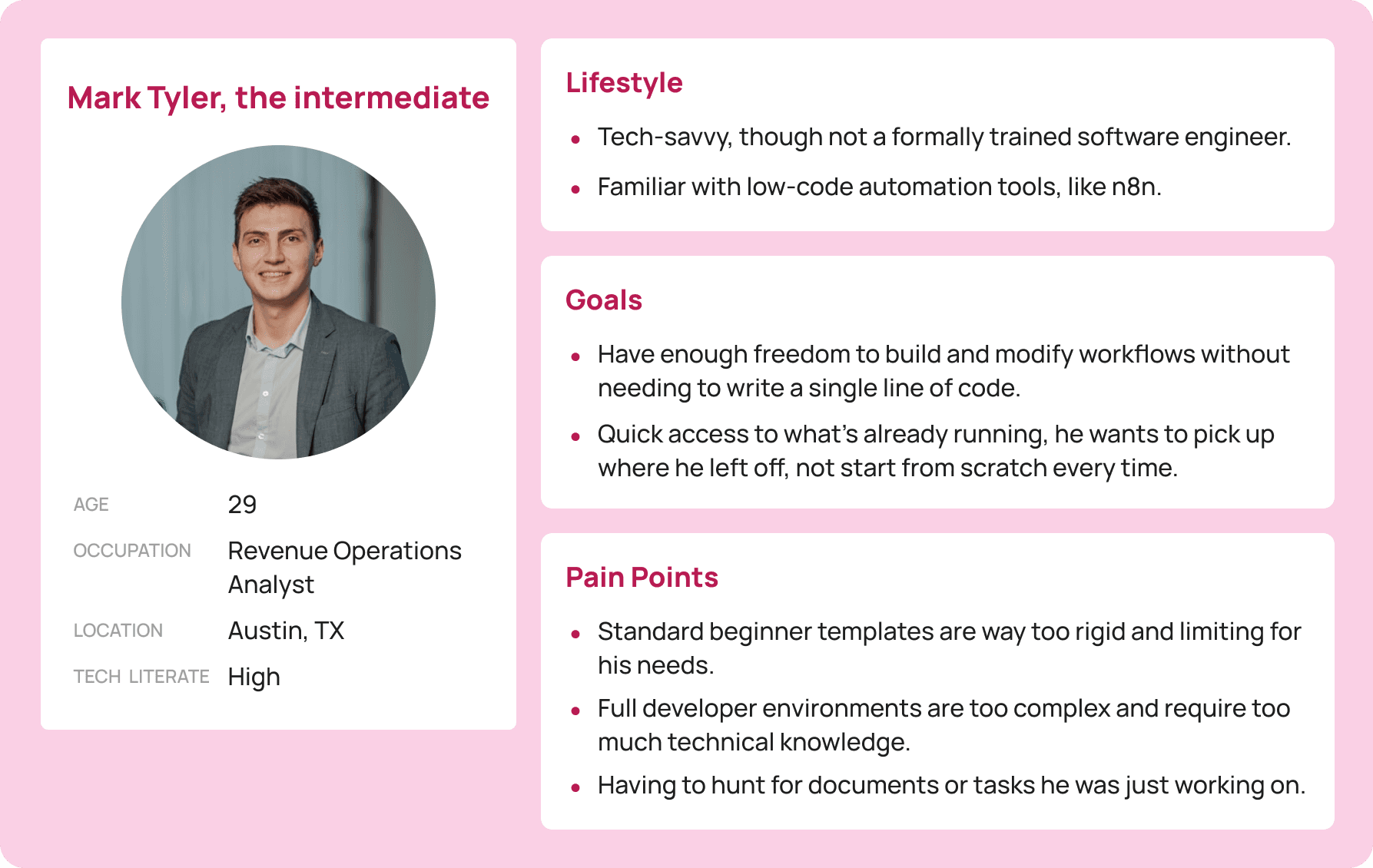
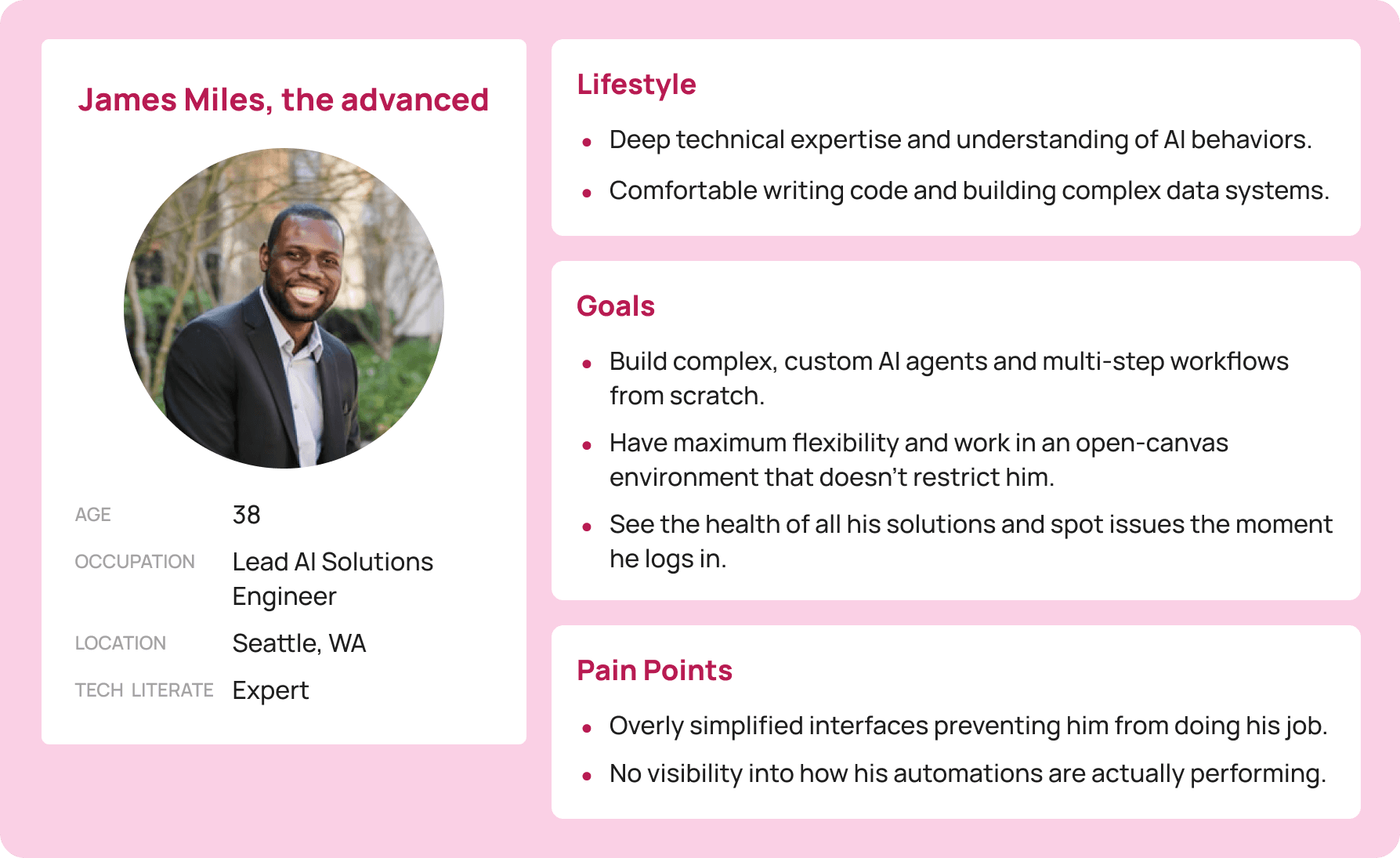
To kick-off things, I started by mapping the users into three skill levels and used them to drive every design decision from now on.
Let me introduce you to our three user personas:
Now, what does an enterprise AI dashboard need to include?
To map all necessary components to include in the dashboard, I ran a competitive audit, identifying core features and user flows across top competitors.
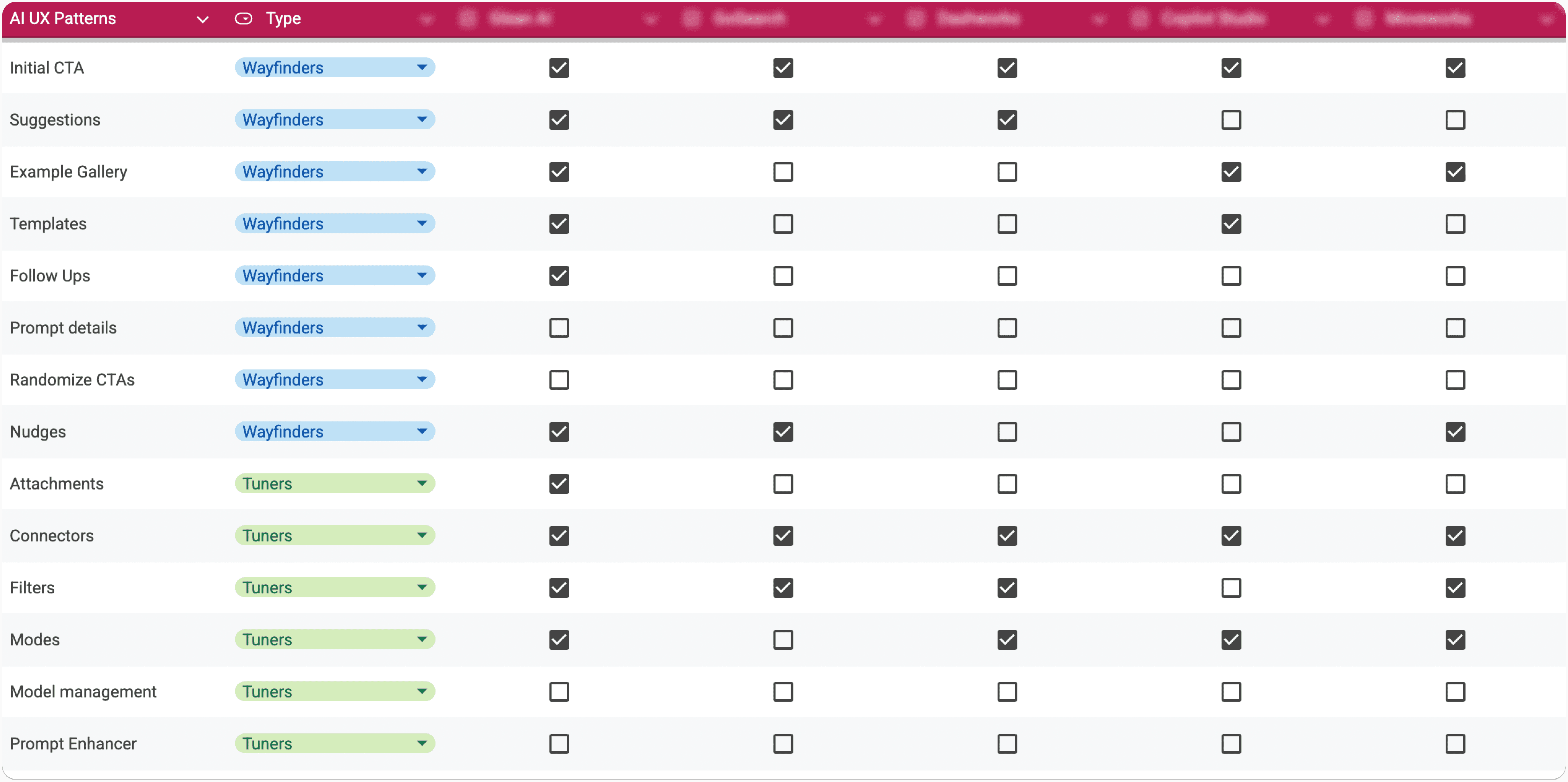
The best dashboards build on patterns people already recognize — not ask them to learn new ones.
So instead of designing from scratch, I leaned into established AI UI patterns — things like initial CTA, example gallery, and AI suggestions. The result? A dashboard that felt intuitive from the first click.
DASHBOARD FOR BEGINNERS
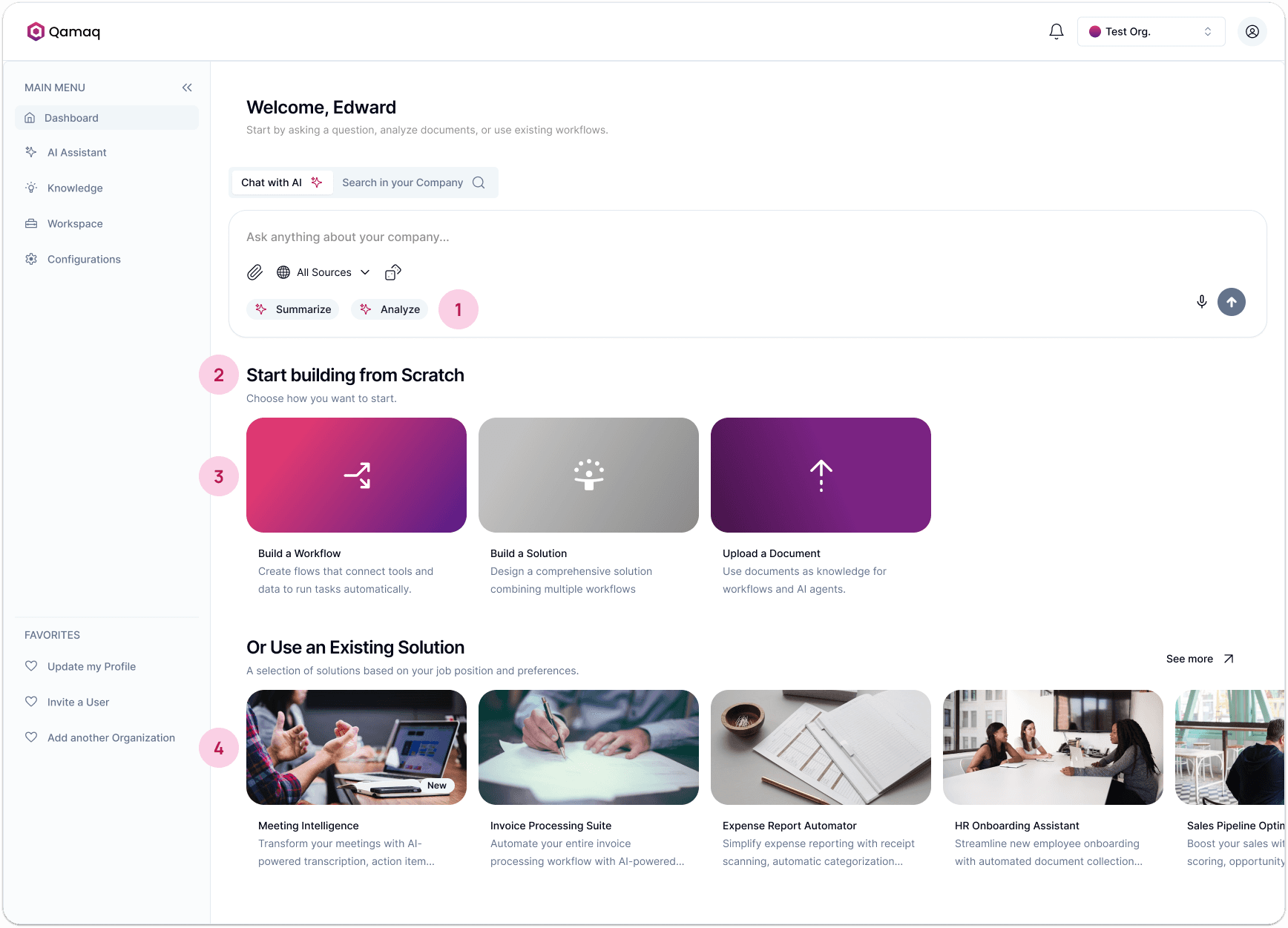
Guided CTA with AI suggestions. Shows users what they can do before they even start typing. No blank box, no confusion.
Clear section headlines. "Start building from Scratch" and "Or Use an Existing Solution" tell users exactly what their options are without making them think about it.
Prominent main actions. The core creation paths are big, colorful, and impossible to miss. You see them and immediately know what Qamaq is built for.
Example gallery. Instead of an empty platform, users land on a page that already shows what's possible. It works as passive onboarding before they've done anything.

Key Decision
The founder resisted simplifying the interface, worried it would strip the platform's power. I argued that simplicity doesn't mean less capable — it means less overwhelming. The adaptive approach was the compromise: full power for advanced users, a guided entry point for everyone else.
________________________________________________________
DASHBOARD FOR INTERMEDIATE USERS
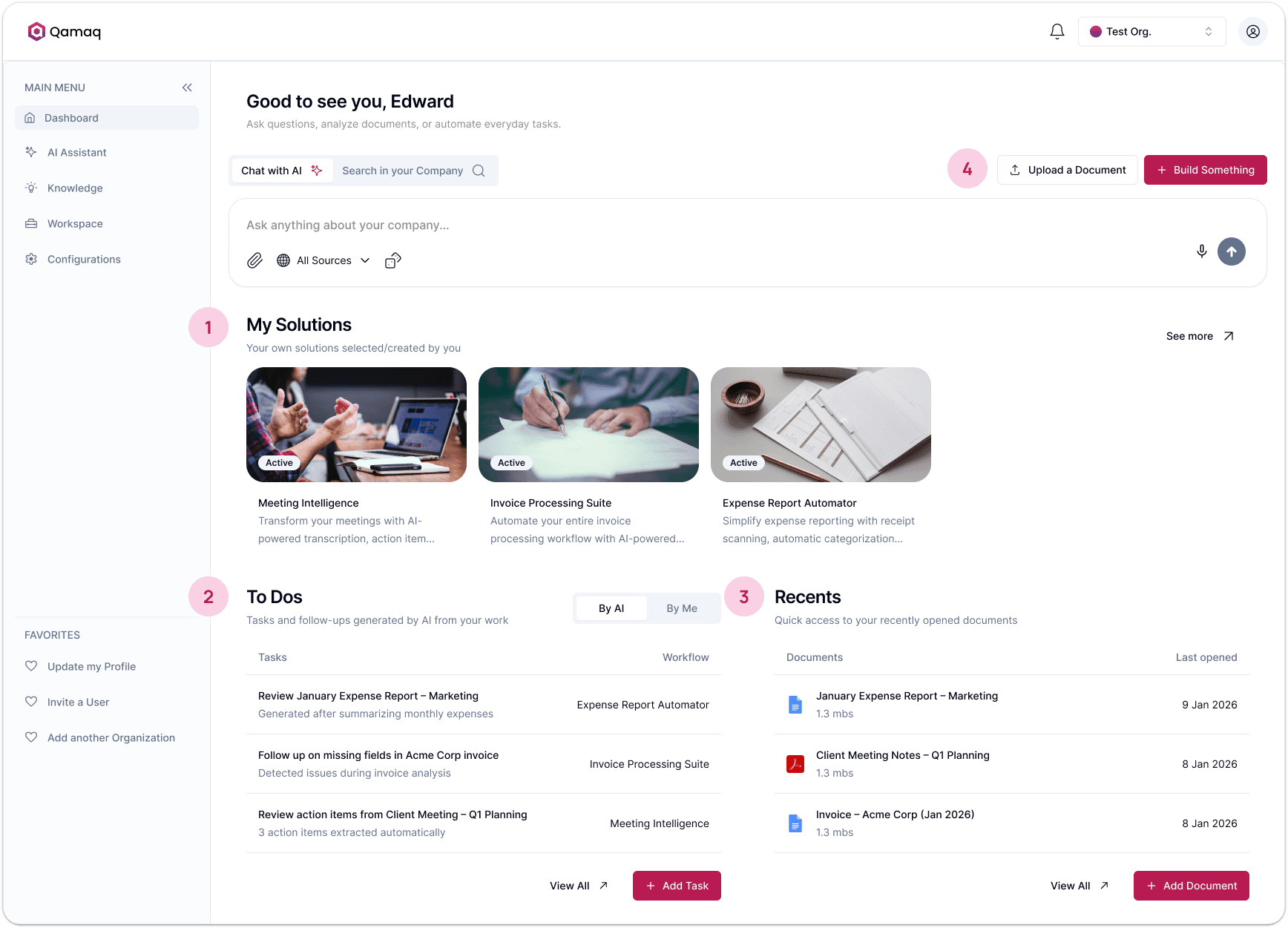
Active solutions up top. They already have things running, so that's the first thing they see. No onboarding, straight to what matters.
To Dos front and center. AI generated and manual tasks sit right there on the dashboard. Qamaq becomes part of how they manage their day, not just a tool they open occasionally.
Recent documents. The files they've already been working with surface automatically. No hunting through menus to find something they used yesterday.
Simplified actions. The big CTAs are gone. Main actions shrink to compact buttons because they already know what they want to do.
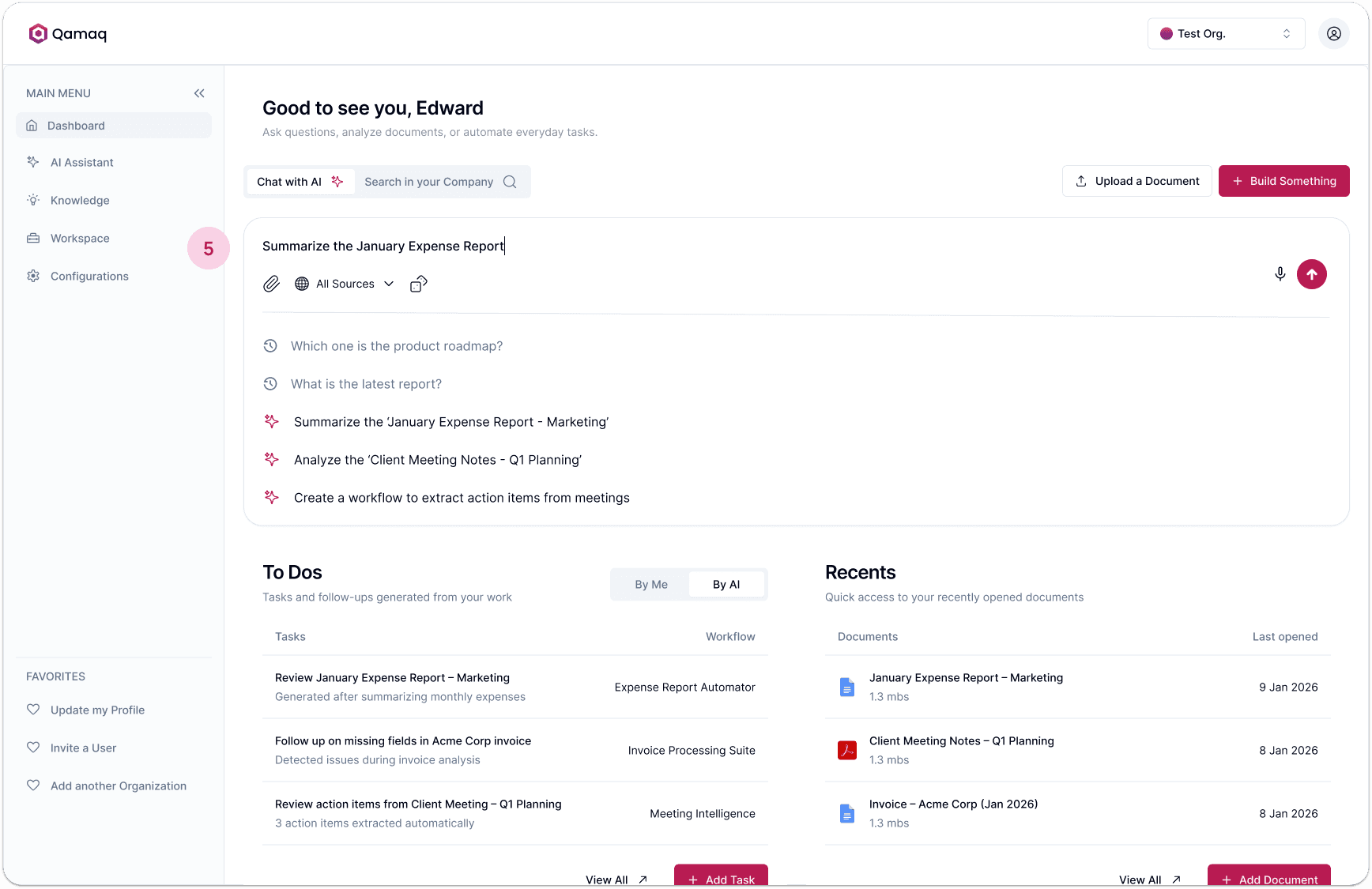
Smarter suggestions inside the chat. Suggestions move into the chat input and get personalized based on their actual history. The more they use it, the more relevant it gets.
_________________________________________________________
DASHBOARD FOR ADVANCED USERS
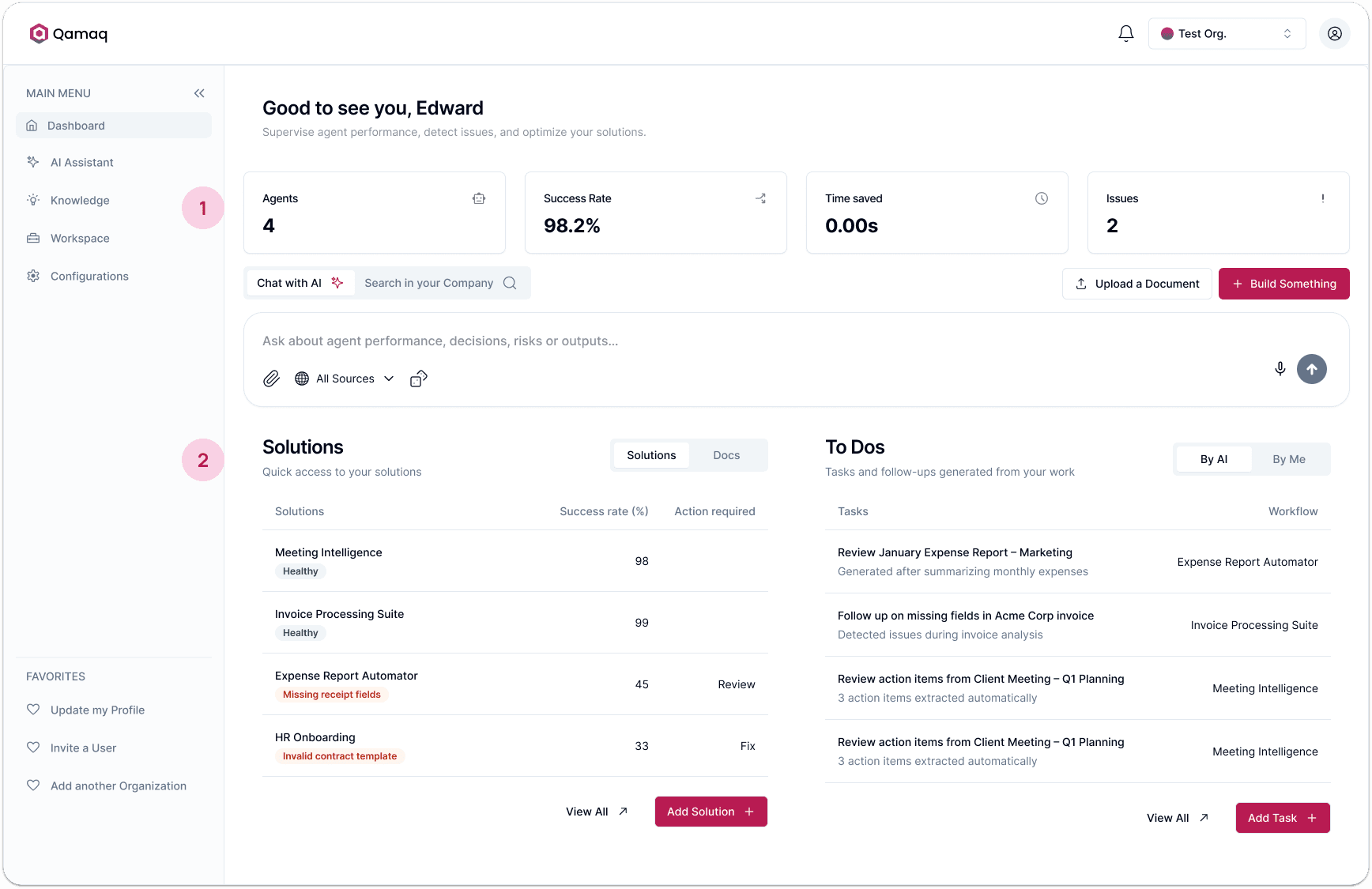
Performance metrics up top. The first thing they see is how everything is running. Agents active, success rate, time saved, open issues.
Solutions as a table. No visual cards, just a table with status indicators, success rates, and flagged issues. They can scan everything and know exactly what needs attention in seconds.
Users no longer struggle with where to start: The dashboard now adapts to their skill level — showing only what's relevant.
The next challenge was what happened when users tried to build something.
I redesigned a flow that actually guided beginners through the process while letting advanced users skip straight to what they needed.
BUILD A SOLUTION FLOW
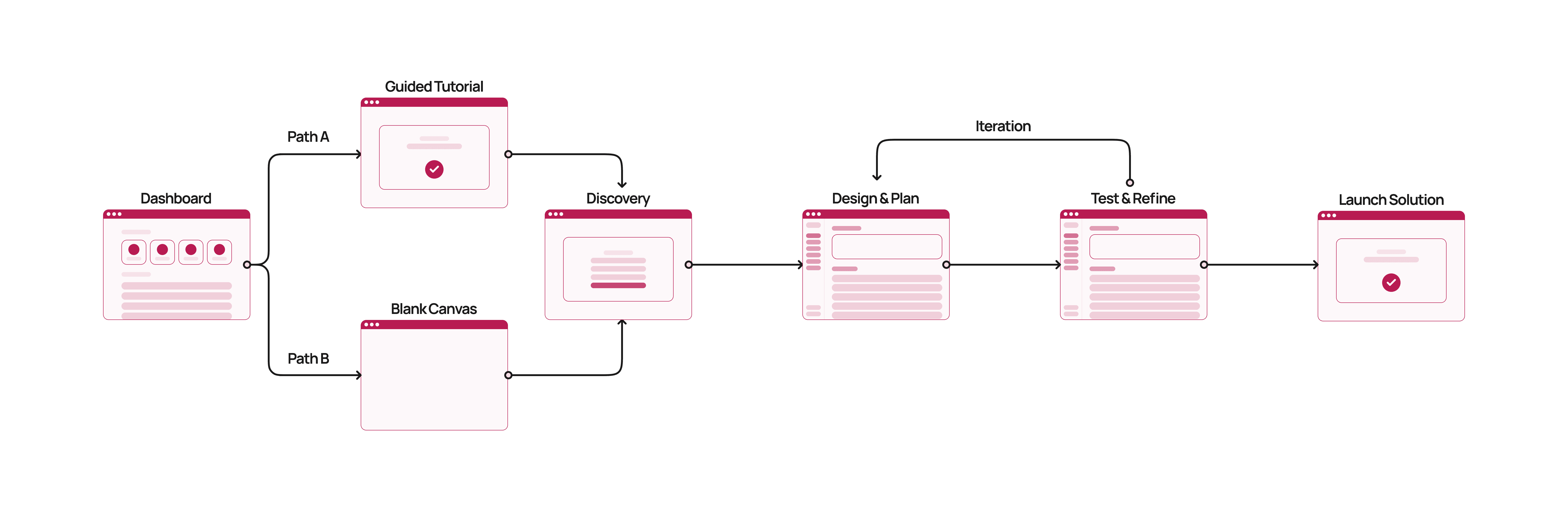
Path A: Guided tutorial for beginners. Instead of a blank canvas, the platform walks them through it. It asks simple scoping questions, generates a visual plan for them to review, and only builds once they're ready.
Path B: Blank canvas for advanced users. No hand-holding, no extra steps. They land directly in the execution environment with full control from the start.
Now, let's see the UI.
GUIDED TUTORIAL FOR BEGINNERS
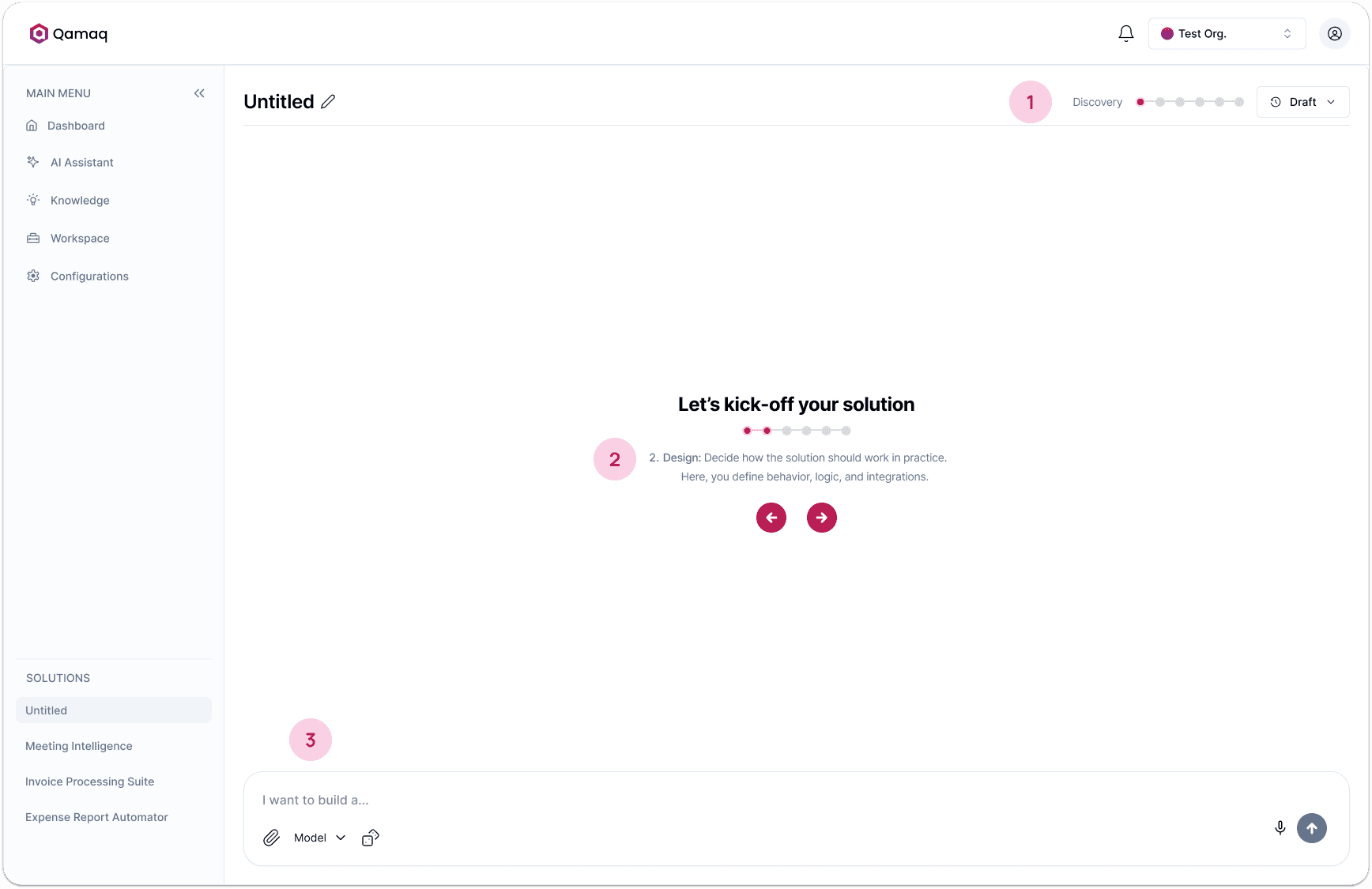
Progress indicator. Beginners can see exactly where they are in the process. It makes the whole thing feel achievable instead of overwhelming.
Step-by-step instructions. Show exactly what to do at each specific phase of the process, so the user always knows what to expect next.
Guiding microcopy. The chat tells users exactly what kind of input is expected at each step.
__________________________________________________________
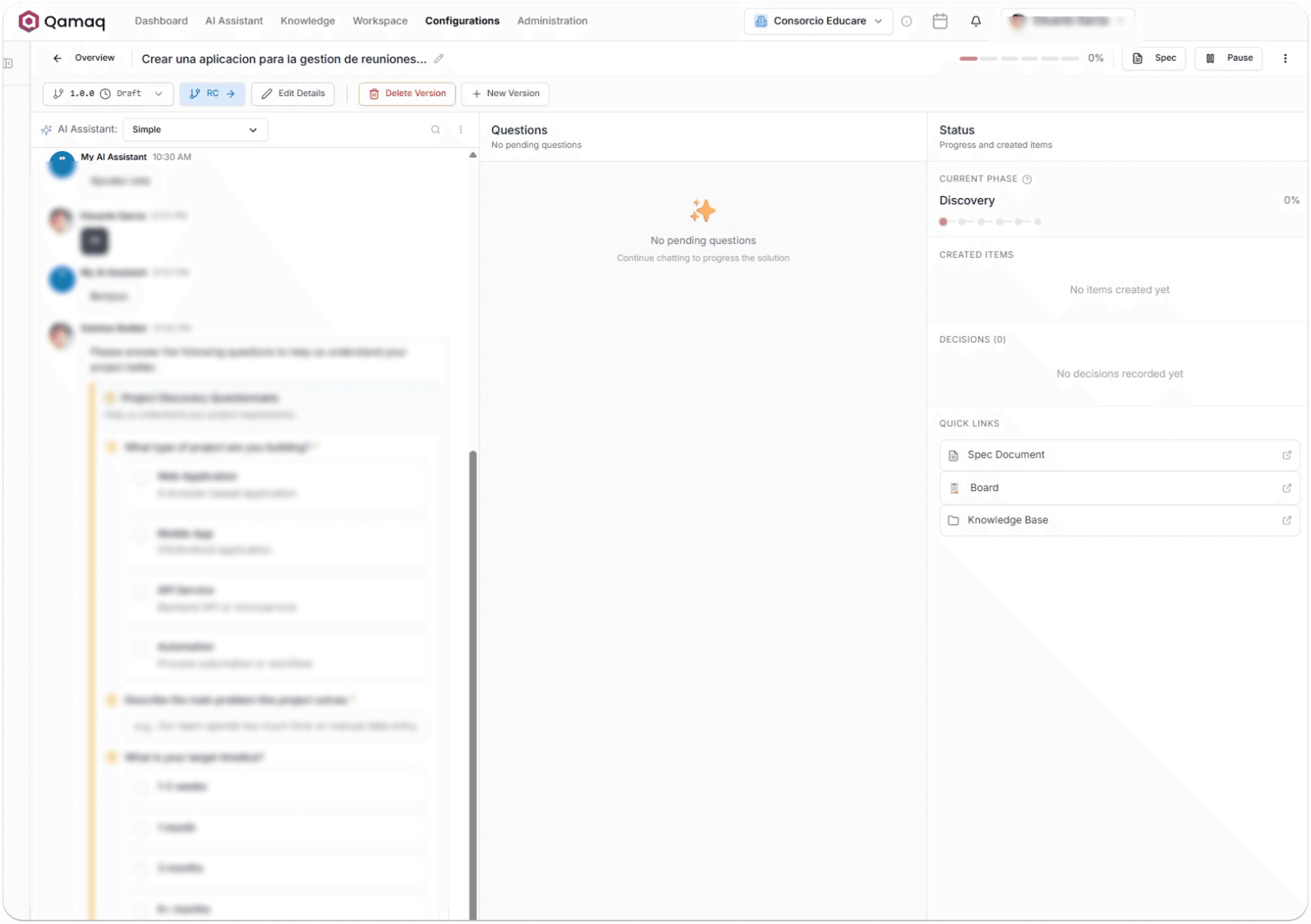
SOLUTION BUILDER BEFORE
SOLUTION BUILDER AFTER
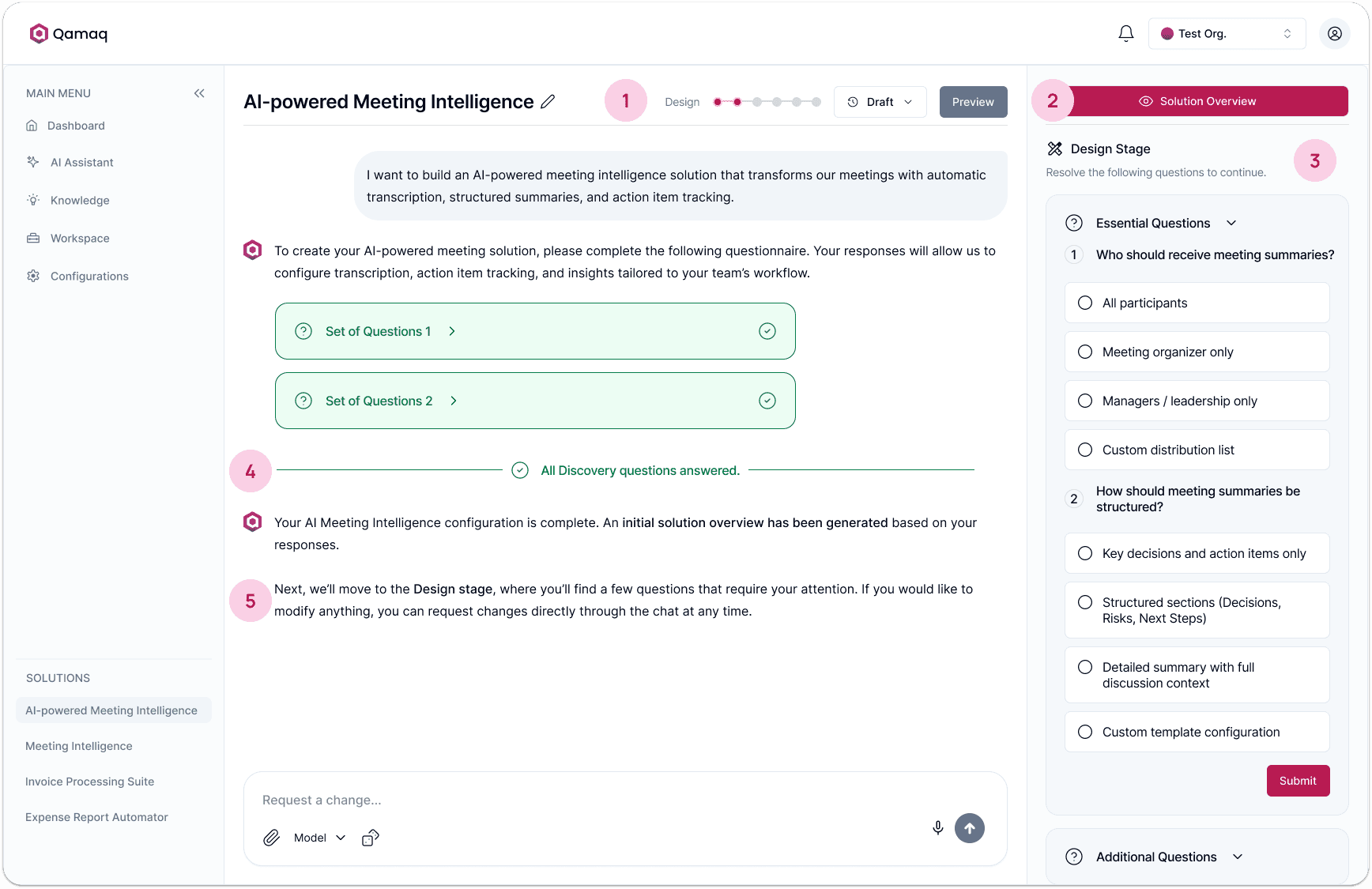
Cleaner navigation. Removed extra settings and version controls from the top bar. Less noise, more focus on building.
Prominent CTA. Replaced the easy to miss "Spec Document" link with a high contrast button so users always have quick access to their plan.
Consolidated and context aware sidebar. Merged the middle column into the sidebar and made it adapt to the current phase, only showing what's relevant at that moment.
Phase dividers in the chat. A visual marker appears when a step is done, keeping the conversation easy to follow.
Adaptive guidance. The AI adjusts how it talks based on who's using it. Step by step for beginners, straight to the point for advanced users.
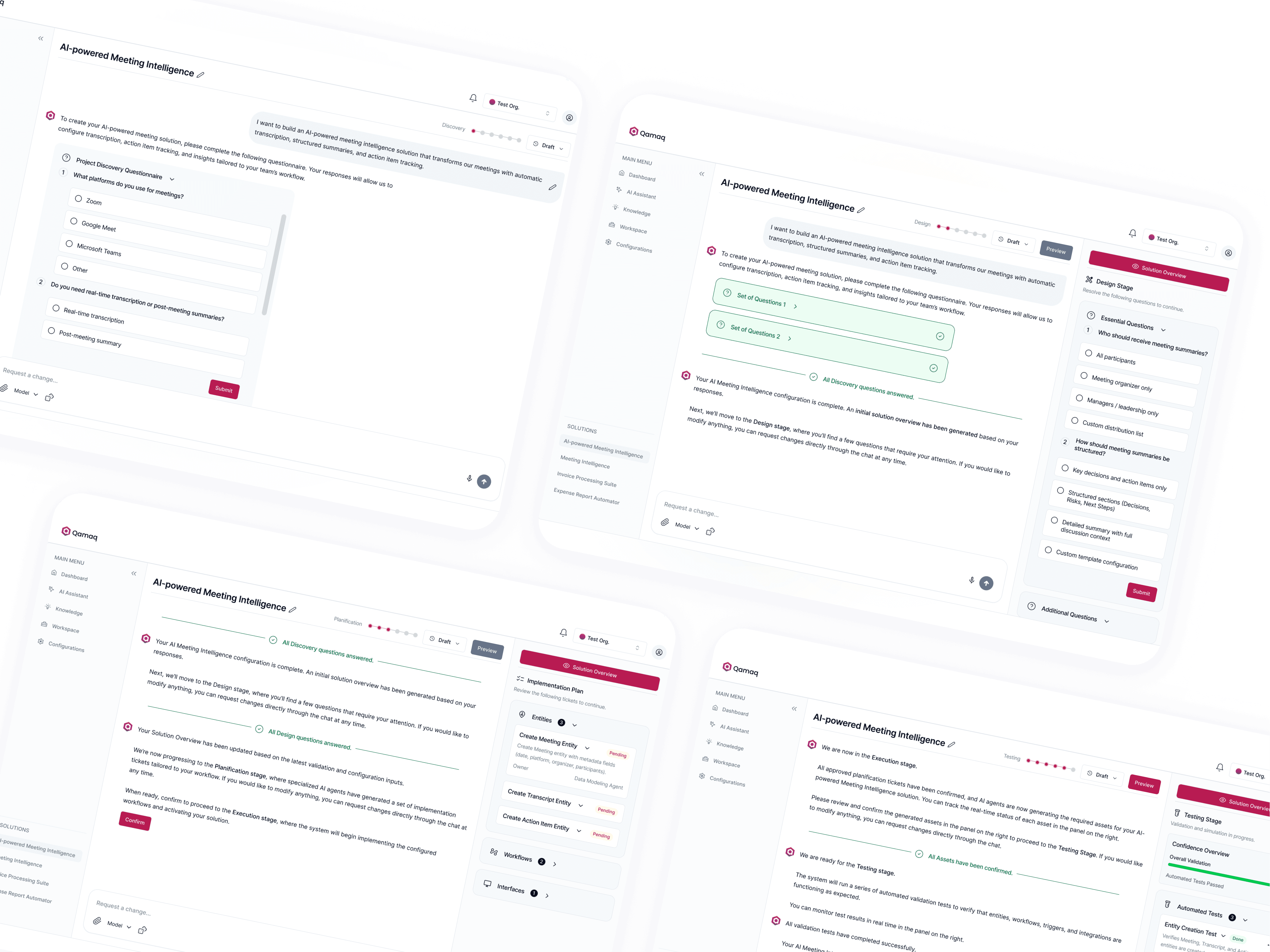
Previously, non-technical users couldn't build an agent without support. Now, a first-time user can go from zero to deployed, on their own.
By combining established AI UX patterns with adaptive guidance and clear microcopy, we removed the technical barrier that made the original platform inaccessible to most of its intended audience.
KEY TAKEAWAYS
 Beginners shouldn't have to learn how to talk to an AI. Instead of leaving them with a blank box, we added suggestions, examples and microcopy to point them in the right direction. |  The UI should adapt. Beginners get guided steps, less options and simpler AI responses, while experts get direct access and more technical feedback. |
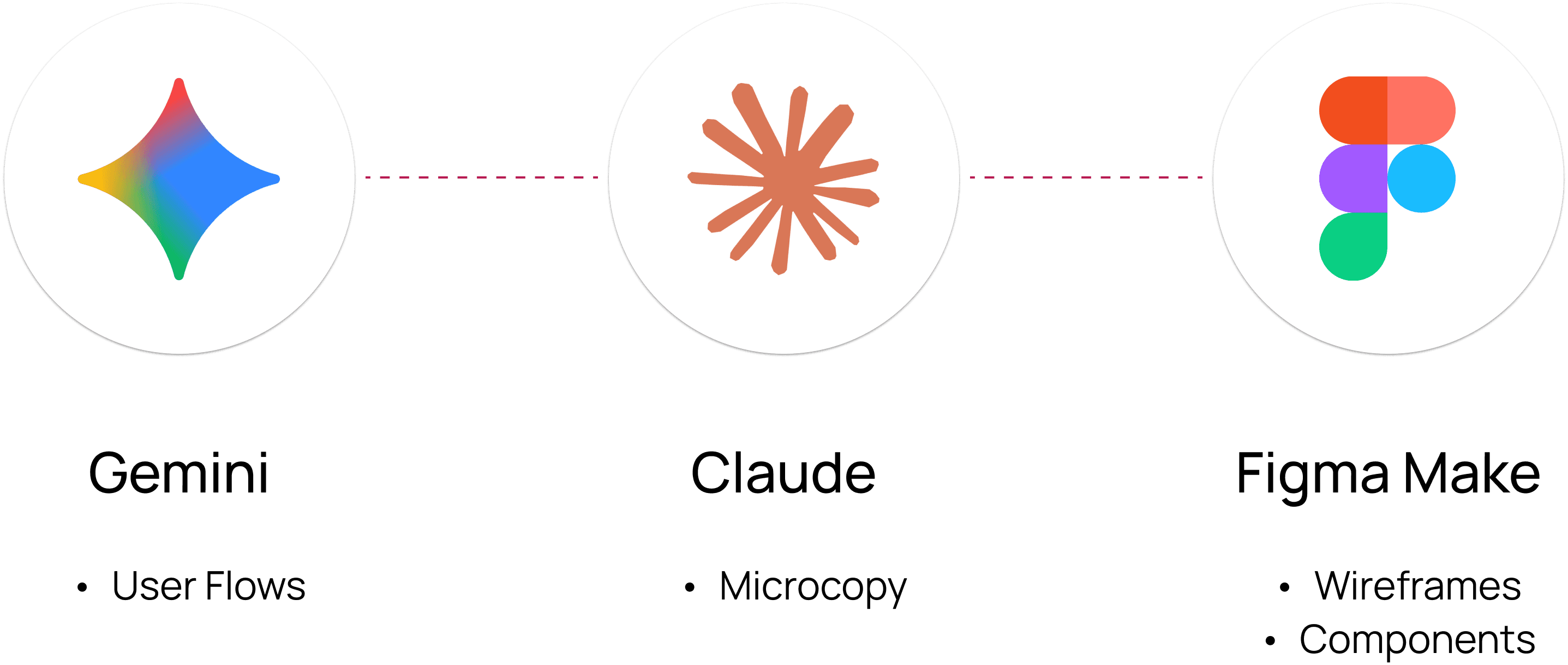
My AI Stack
How I collaborated with AI across the design of this product.
Qamaq is an enterprise AI platform that lets teams consult internal documents, automate workflows, and build custom solutions all-in-one.
I joined Qamaq as a Human-AI Interaction Designer to redesign a platform that had been built by the CEO and the dev team but was only really working for technical users. The challenge was clear: make it adaptive for every type of user, regardless of their skill level.
Working directly with the CEO, I led the end-to-end redesign of the platform's core flows. This included architecting the new level-based dashboard and completely rethinking the "build a solution" experience, making sure the interface felt right no matter who was using it.
The platform was solid, but it was built assuming everyone already knew how to use enterprise AI.
Two things kept coming up:
Information overload on the dashboard | The creation flow was too complex for low-mid level users |
|---|---|
Nothing made it clear for new users where to start or what Qamaq could actually do. | Beginners and intermediate users would hit a wall the moment they tried to build something real. |
DASHBOARD BEFORE
DASHBOARD AFTER
The goal was to keep Qamaq's full enterprise power while making it work for non-technical users.
Two things had to happen:
Make the dashboard adapt to who's using it | Make the creation flow work for everyone. |
|---|---|
Each role needed to see exactly what was relevant to them. No overload, no guessing. | Beginners needed guidance to get through it. Advanced users needed a fast track. |
To kick-off things, I started by mapping the users into three skill levels and used them to drive every design decision from now on.
Let me introduce you to our three user personas:
Now, what does an enterprise AI dashboard need to include?
To map all necessary components to include in the dashboard, I ran a competitive audit, identifying core features and user flows across top competitors.
The best dashboards build on patterns people already recognize — not ask them to learn new ones.
So instead of designing from scratch, I leaned into established AI UI patterns — things like initial CTA, example gallery, and AI suggestions. The result? A dashboard that felt intuitive from the first click.
DASHBOARD FOR BEGINNERS
Guided CTA with AI suggestions. Shows users what they can do before they even start typing. No blank box, no confusion.
Clear section headlines. "Start building from Scratch" and "Or Use an Existing Solution" tell users exactly what their options are without making them think about it.
Prominent main actions. The core creation paths are big, colorful, and impossible to miss. You see them and immediately know what Qamaq is built for.
Example gallery. Instead of an empty platform, users land on a page that already shows what's possible. It works as passive onboarding before they've done anything.
Key Decision
The founder resisted simplifying the interface, worried it would strip the platform's power. I argued that simplicity doesn't mean less capable — it means less overwhelming. The adaptive approach was the compromise: full power for advanced users, a guided entry point for everyone else.
________________________________________________________
DASHBOARD FOR INTERMEDIATE USERS
Active solutions up top. They already have things running, so that's the first thing they see. No onboarding, straight to what matters.
To Dos front and center. AI generated and manual tasks sit right there on the dashboard. Qamaq becomes part of how they manage their day, not just a tool they open occasionally.
Recent documents. The files they've already been working with surface automatically. No hunting through menus to find something they used yesterday.
Simplified actions. The big CTAs are gone. Main actions shrink to compact buttons because they already know what they want to do.
Smarter suggestions inside the chat. Suggestions move into the chat input and get personalized based on their actual history. The more they use it, the more relevant it gets.
_________________________________________________________
DASHBOARD FOR ADVANCED USERS
Performance metrics up top. The first thing they see is how everything is running. Agents active, success rate, time saved, open issues.
Solutions as a table. No visual cards, just a table with status indicators, success rates, and flagged issues. They can scan everything and know exactly what needs attention in seconds.
Users no longer struggle with where to start: The dashboard now adapts to their skill level — showing only what's relevant.
The next challenge was what happened when users tried to build something.
I redesigned a flow that actually guided beginners through the process while letting advanced users skip straight to what they needed.
BUILD A SOLUTION FLOW
Path A: Guided tutorial for beginners. Instead of a blank canvas, the platform walks them through it. It asks simple scoping questions, generates a visual plan for them to review, and only builds once they're ready.
Path B: Blank canvas for advanced users. No hand-holding, no extra steps. They land directly in the execution environment with full control from the start.
Now, let's see the UI.
GUIDED TUTORIAL FOR BEGINNERS
Progress indicator. Beginners can see exactly where they are in the process. It makes the whole thing feel achievable instead of overwhelming.
Step-by-step instructions. Show exactly what to do at each specific phase of the process, so the user always knows what to expect next.
Guiding microcopy. The chat tells users exactly what kind of input is expected at each step.
__________________________________________________________
SOLUTION BUILDER BEFORE
SOLUTION BUILDER AFTER
Cleaner navigation. Removed extra settings and version controls from the top bar. Less noise, more focus on building.
Prominent CTA. Replaced the easy to miss "Spec Document" link with a high contrast button so users always have quick access to their plan.
Consolidated and context aware sidebar. Merged the middle column into the sidebar and made it adapt to the current phase, only showing what's relevant at that moment.
Phase dividers in the chat. A visual marker appears when a step is done, keeping the conversation easy to follow.
Adaptive guidance. The AI adjusts how it talks based on who's using it. Step by step for beginners, straight to the point for advanced users.
Previously, non-technical users couldn't build an agent without support. Now, a first-time user can go from zero to deployed, on their own.
By combining established AI UX patterns with adaptive guidance and clear microcopy, we removed the technical barrier that made the original platform inaccessible to most of its intended audience.
KEY TAKEAWAYS
Beginners shouldn't have to learn how to talk to an AI. Instead of leaving them with a blank box, we added suggestions, examples and microcopy to point them in the right direction. | The UI should adapt. Beginners get guided steps, less options and simpler AI responses, while experts get direct access and more technical feedback. |
My AI Stack
How I collaborated with AI across the design of this product.
Other projects
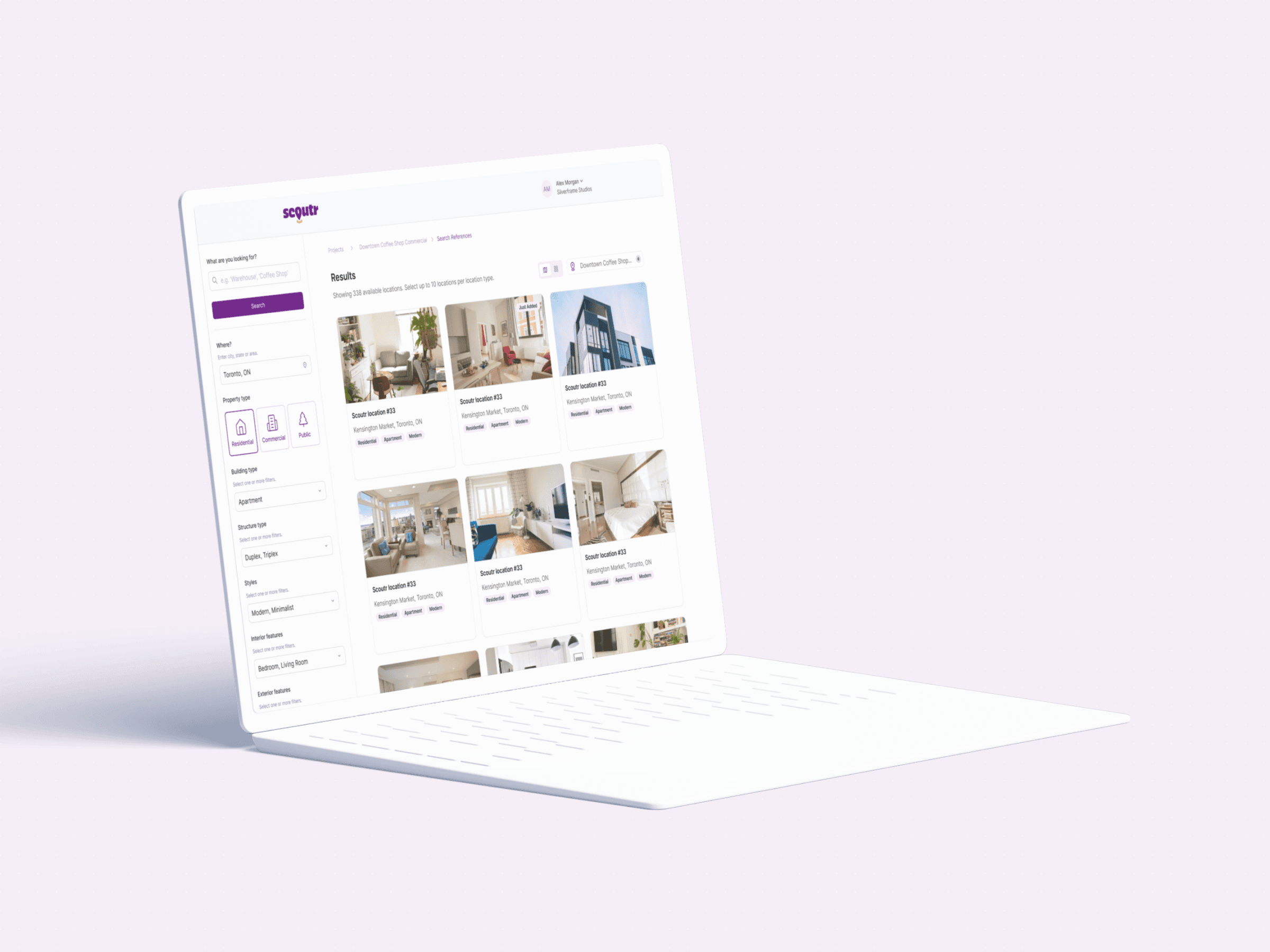
Scoutr.ca: Multi-Role SaaS
Designing a seamless platform for five different types of users
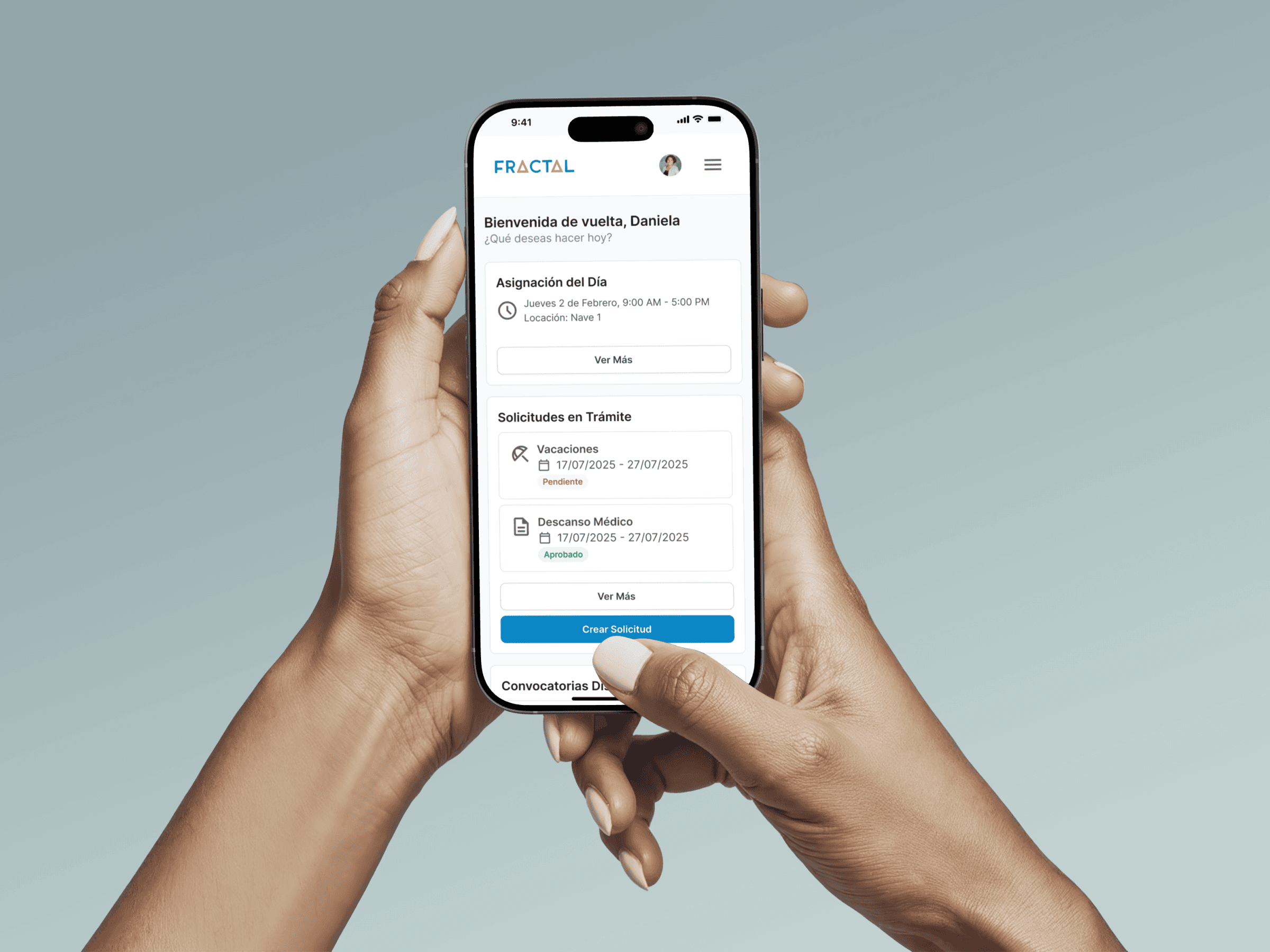
Fractal: Enterprise SaaS Platform
Building a design system and mobile experience for 60,000 employees
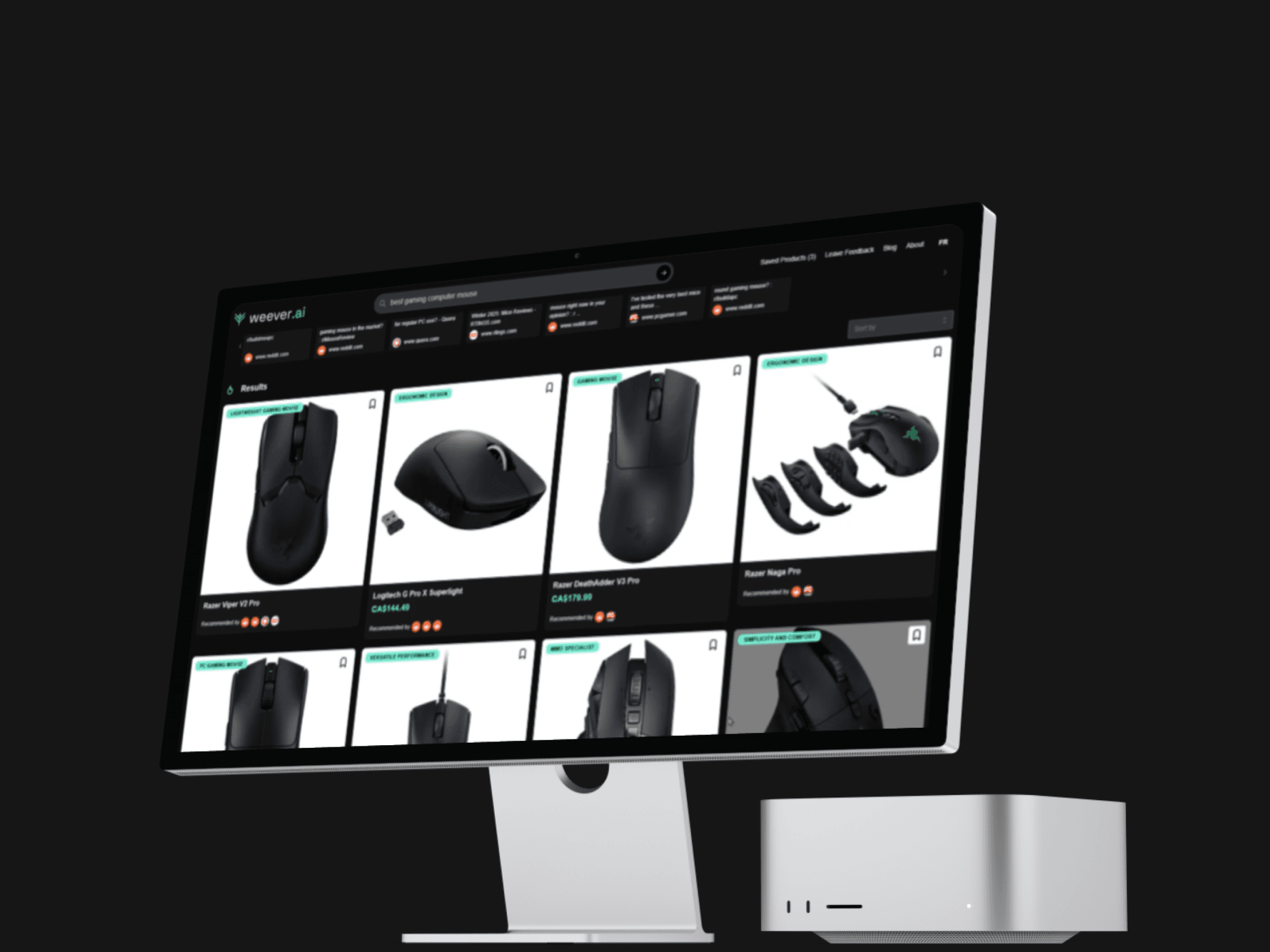
Weever.ai: AI Shopping Assistant
Uncovering what makes users trust in an AI Shopping Assistant
Copyright 2026 by Nicolas Peyre
Copyright 2026 by Nicolas Peyre
Copyright 2026 by Nicolas Peyre